DDS: Data Delivery System
Welcome to the documentation of the Epigenica Data Delivery System’s command line interface (dds-cli).
What is the Data Delivery System?
The Data Delivery System (DDS, https://dds.epigenica.se/) is a tool built for the simple and secure delivery of data from Epigenica to their users. The system uses Safespring’s object storage service as the delivery medium, thereby keeping the data within the Swedish borders. The DDS has built-in encryption and key management, enabling protection of the data without requiring the users to perform these steps themselves prior to delivery.
The DDS consists of a command line interface (CLI) and a web interface. The web interface will be improved on as soon as possible, but we have decided that having a working CLI and its corresponding API is highest on the priority list.
How do I use the DDS?
1. Get an account
I already have an account: Install dds-cli
How do I get an account? You will need an invite from an existing user.
I want data delivered to me from Epigenica: Please contact Epigenica and ask for an invitation to the DDS.
I’m delivering data to users: Contact your colleagues and ask for an invitation, or reach out to data.team@epigenica.se.
Note
Not receiving an invitation email?
Please check in the junk/spam folder.
If that doesn’t help, contact data.team@epigenica.se.
Once you get the invitation email, follow the link in the email and register your account. After this, you should have access to the system. To be able to use the CLI (which contains most of the functionality) please follow the installation guide below.
Warning
Forgetting passwords in the DDS means that you will lose access to all project data. We highly recommend that you use a password management system such as Bitwarden, LastPass or similar.
When resetting a password you can, of course, regain access to the projects you lost access to. You will get information on how when you perform a password reset.
Your account will be either a Unit Admin, Unit Personnel or a Researcher account. These are called the different roles which define the commands and actions you are allowed to perform in the DDS, including some administrative permissions. For more information about the roles, please check out the technical overview.
2. Install the command line interface (CLI): dds-cli
Note
At this time you must use the DDS CLI in order to utilize the majority of the DDS functionalities. This includes upload and download of data.
I have already installed the CLI: Run the CLI
I do not have the CLI installed: Please follow the instructions below.
In order to use the DDS, you first need to install the CLI. The installation process varies depending on which operating system you are on.
I am on…
3. Run the CLI
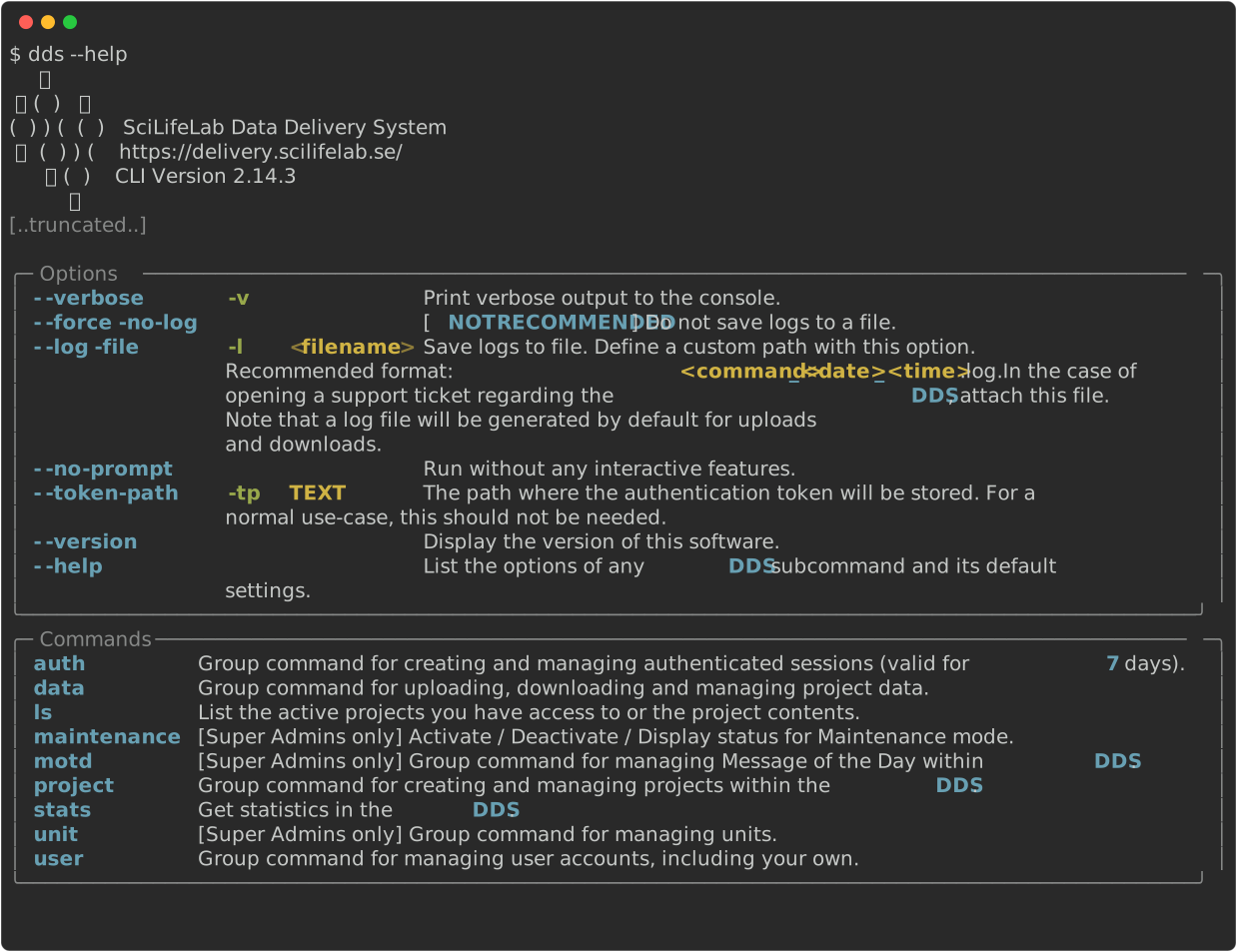
Although the command line tool is installed as dds-cli, the main command is run as dds. The command dds has some options and possible customisations. A detailed list of these can be found here or by running dds --help.
“Logging in” / Authentication
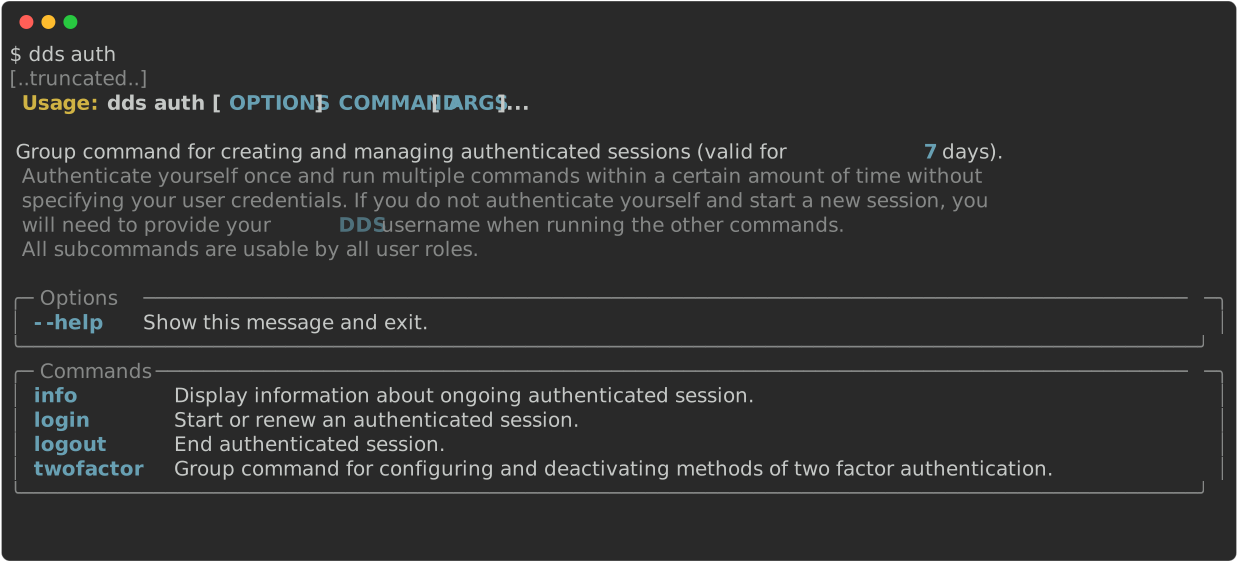
In order to use the dds-cli functionality, you first need to authenticate yourself. Authentication is handled by the dds auth command, which creates and manages authenticated sessions. These sessions are valid for 7 days.
I want to give someone else access to the DDS, how do I do that?
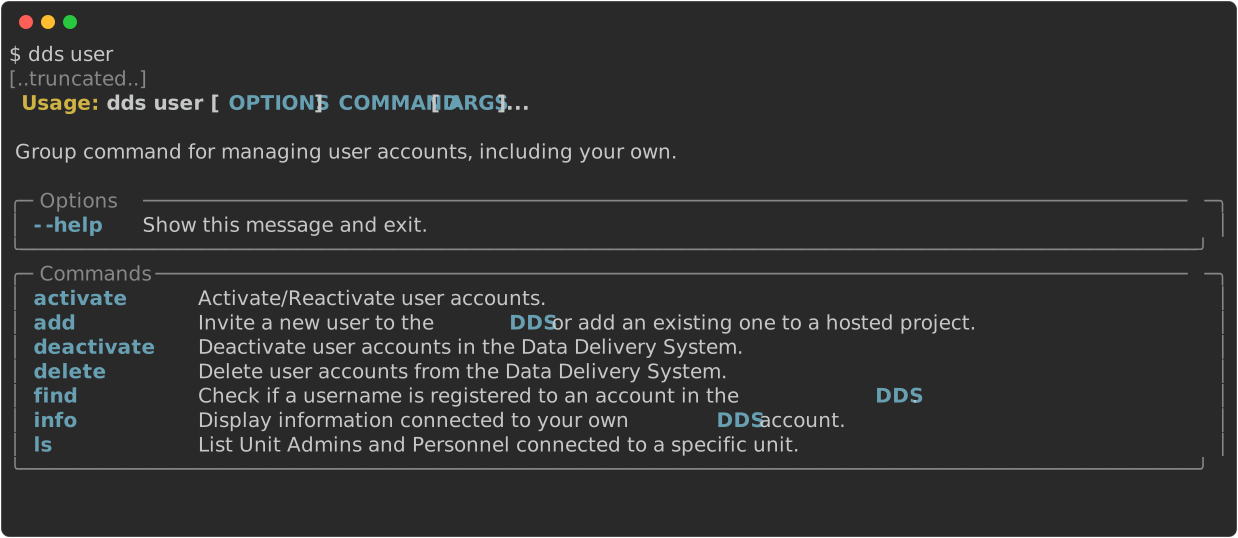
The dds user command allows you to manage your own and, if you have administrative permissions, other user accounts. This includes inviting new users. Your invitation privileges depends on your account role.
How do I know which role my account has? You can get information about your account by running
dds user info(after authenticating)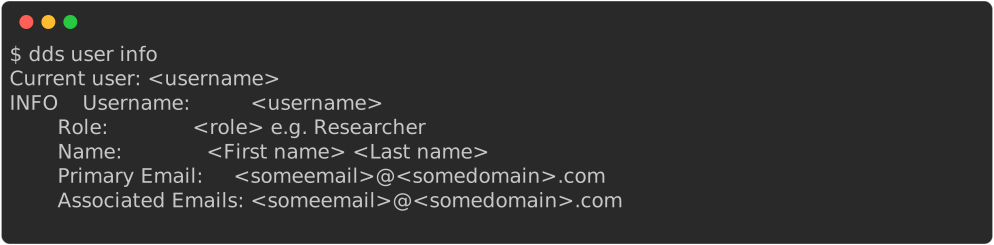
Which account roles can I invite? The technical overview has a detailed description of which actions each account role can perform.
How do I deliver data to our users?
Note
This section only applies to the account roles Unit Admin and Unit Personnel.
In order to deliver data, you first need to create a project in the DDS. Projects are created and managed with the
dds projectcommand.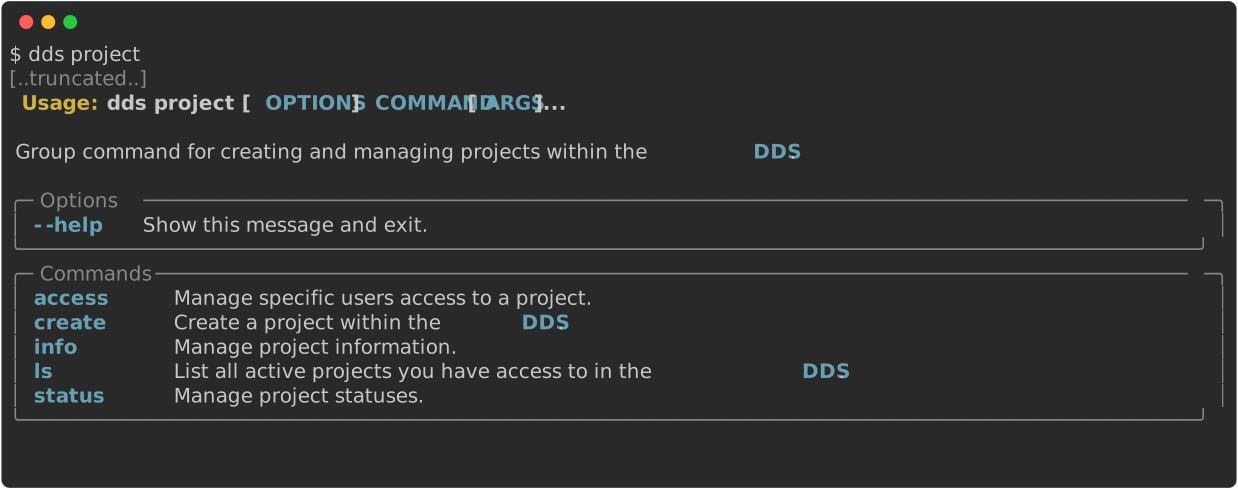
An example on how to create a project can be found here
Upload the data with the
dds data putcommand.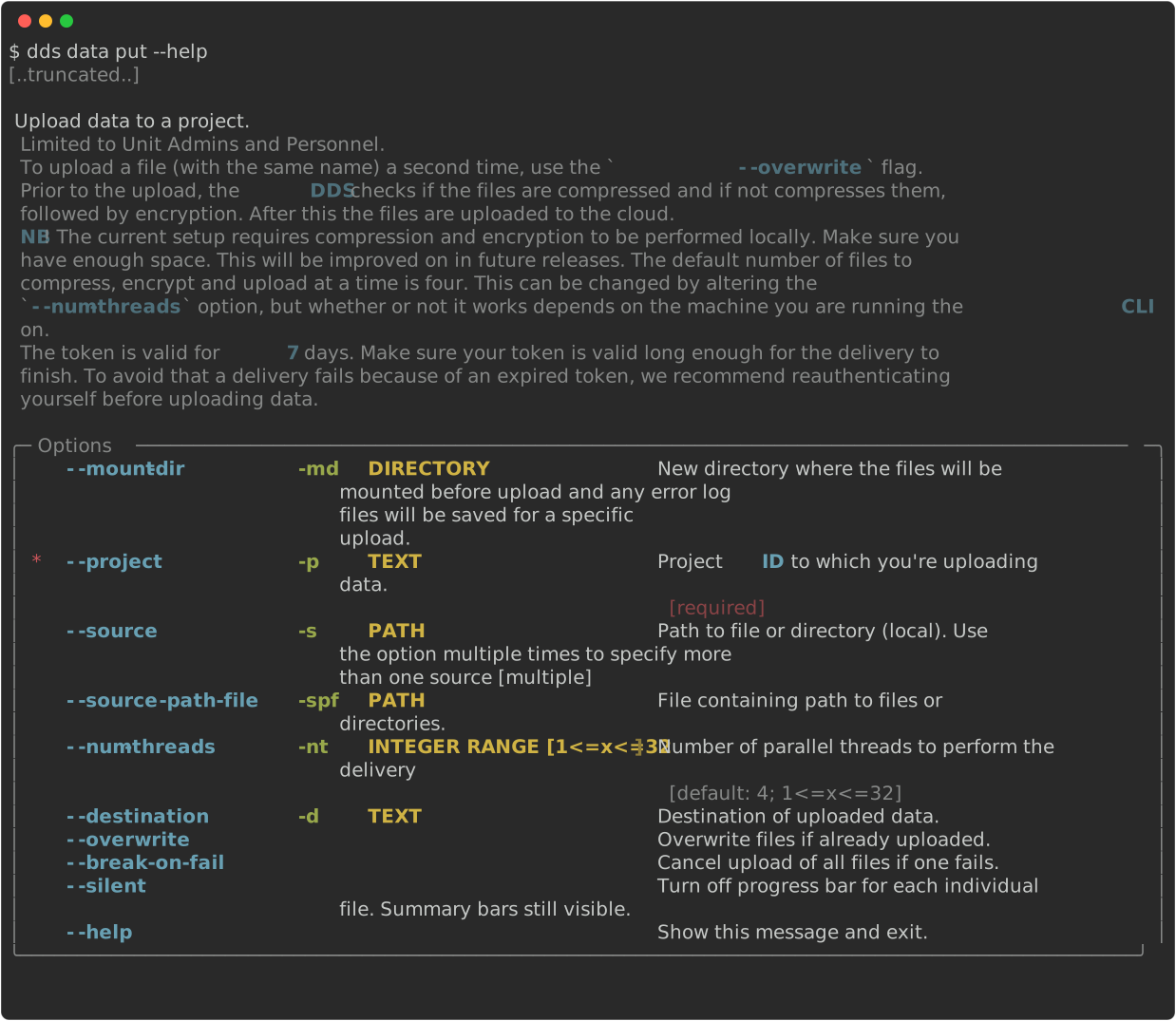
Examples on how to upload data can be found here
Finally, you will need to make the data available to your users. This is called “releasing” the project and is also handled by the
dds projectcommand.An example on how to release the project can be found here
How do I get my delivered data?
Once the unit has uploaded your data and made it available to you, you can download it to your location of choice with the dds data get command.
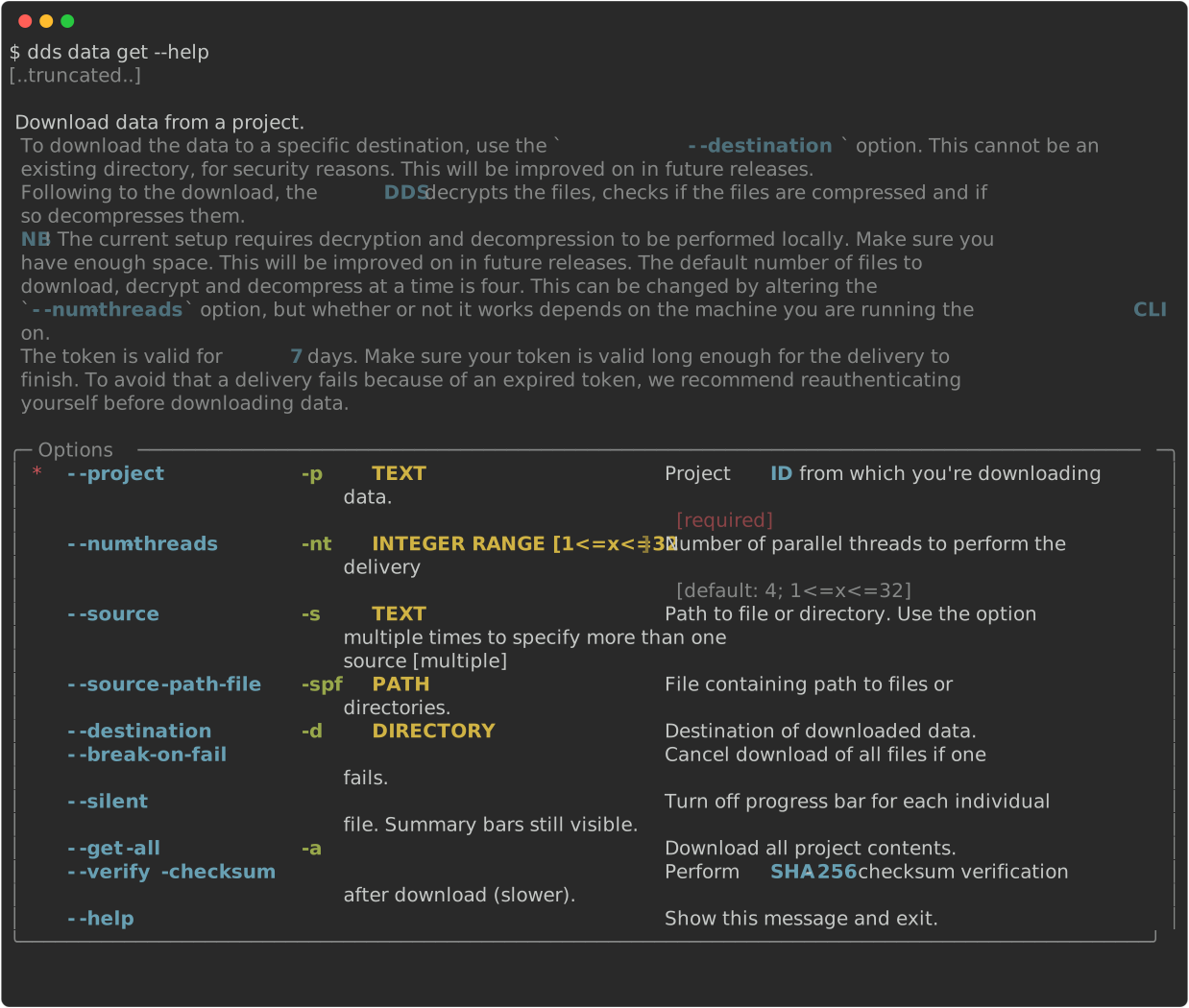
I want to download everything in a project: See this example
I want to download a specific file or folder: See this example